
Sage is one of the largest mid-market ERP families in the world. Sage 100, Sage X3, Sage 300, and Sage Intacct each handle address validation differently, with almost no overlap in how they check an address.
The gap hits hardest on organizations operating across borders — companies with international vendor and customer books, or with overseas subsidiaries feeding a US-headquartered accounting system. The failure modes compound quickly: malformed postal codes, rejected shipping labels, tax jurisdiction errors, and incomplete EU compliance filings.
Filling those tables is the fix, and the work follows a known sequence. This guide covers address validation across all four Sage products, then walks through the Sage 100 load step by step.
💡GeoPostcodes provides global location data, including ZIP codes, cities, streets, and house numbers across every country. Our licenses include dedicated support and Sage-ready data models to help you maintain address master data in Sage.
What is Sage address validation?
Address validation in the context of accounting systems answers three questions. Is the address real? Is it formatted correctly? And does it sit in the correct postal geography and tax jurisdiction?
In Sage, the address validation capability is product-family dependent. Some Sage products ship native lookup tables. Others rely on third-party integrations, such as Avalara checking an address as part of the sales tax computation process.
Accurate address data is essential for tax compliance because it feeds directly into tax and regulatory reporting. Incorrect addresses not only cause operational issues (e.g., shipping to the wrong address) but can also generate significant rework for finance teams and lead to financial or legal risks, especially for companies involved in cross-border import and export.
Sage address validation across the ecosystem
The table below shows how the wider Sage ecosystem handles geographical master data.
| Sage product | Native postal/ZIP table | Pre-populated? | Address validation route | International footprint |
|---|---|---|---|---|
| Sage X3 | ZIP Codes table (Common Data) | No — ships empty for every country | POSCOD/POSCODCPY enforcement, plus Sage Sales Tax for the US and Canada | High (60–90%) — the most international Sage product |
| Sage 300 | None — free-form text field | N/A | Orchid Extender Address Validation (USPS, Canada Post, Google), or Avalara AvaTax for the US and Canada | Moderate to high (30–50%) |
| Sage Intacct | None — Custom Objects can host data | N/A — not wired to address entry by default | Avalara AvaTax (US and Canada) or a bolt-on API | Moderate (20–40%) — mostly US-centric |
| Sage 100 | Three linked tables (see deep dive below) | US ZIP codes; US and Canadian states | Native ZIP autofill, plus Avalara AvaTax for the US and Canada | Low to moderate (10–25%) — mostly US-centric |
Sage X3 is the most international product in the Sage lineup, spanning more than 60 country localizations. Its ZIP Codes table, held in Common Data, stores country, postal code, city, municipality code, state code, and a geographic code for each record. Turn on postal code control for a country, and the POSCOD parameter flags any code missing from the table, while POSCODCPY checks the format. The table itself ships empty, with no seed data for any country.
Sage 300 has no native postal code lookup table. The postal code field on customer, vendor, and ship-to records is free-form text and does not support city or state autofill. Orchid Extender Address Validation is the established third-party route, built on APIs from USPS, Canada Post, and Google.
Sage Intacct has no native postal or geographical master table either, and no built-in worldwide reference dataset. Custom Objects can host postal data in Intacct, but they don’t automatically connect to address entry. Making that data check or autofill an address takes extra logic on top: Smart Rules, triggers, or platform scripting.
Sage 100 includes native ZIP Code and State/Province tables. The ZIP Code table is preloaded with US ZIP codes only, while the State/Province table is pre-populated for the US and Canada. It carries more implementation detail than any other Sage product, which is why we deep dive into it below.
Deep dive: how address validation works in Sage 100
Sage 100 is the only Sage product built around a complete native geographical master data structure, reached through Library Master → Setup. Three linked tables drive it:
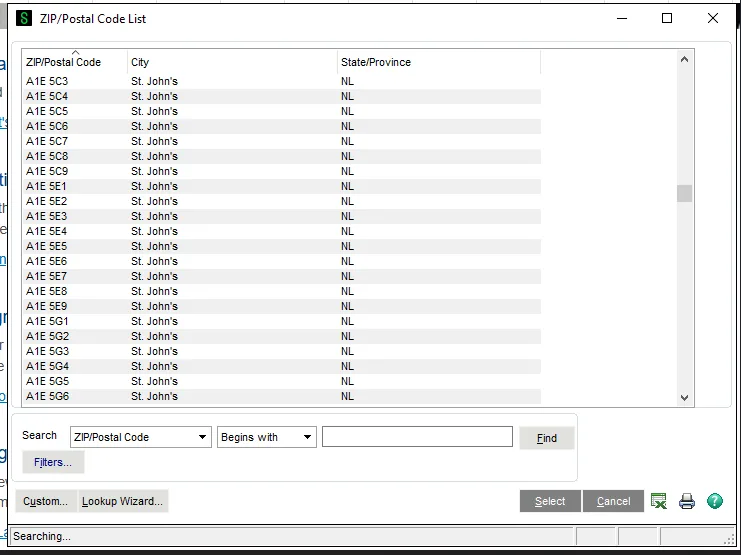
- ZIP Code Maintenance: Preloaded with US ZIP codes. Entering a known ZIP code auto-fills city and state.
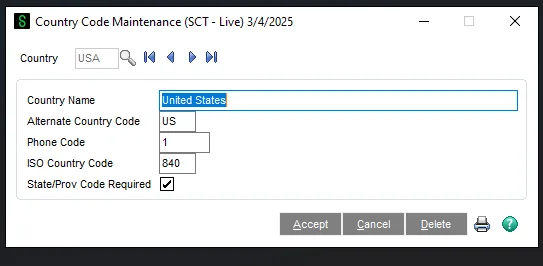
- Country Code Maintenance: The base set of country codes, which determines whether Sage treats a subdivision as a state or a province.
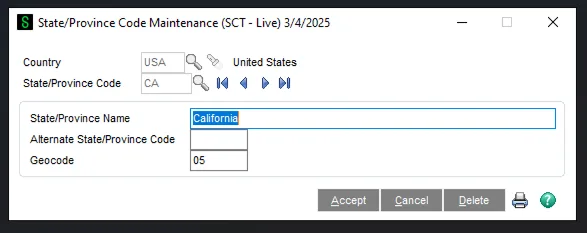
- State/Province Code Maintenance: Pre-populated for the US and Canada only.
The architecture supports worldwide postal, country, and state or province data. Sage populates only the US, plus Canada for states and provinces. The remaining 200-plus countries stay empty until you maintain the address master data for them.
Step by step: how to add worldwide postal data to Sage 100
The guide below outlines the most relevant steps and details to consider as part of address master data maintenance in Sage 100.
Step 1: Source and prepare the global postal dataset
During the data sourcing process, confirm the dataset includes the right columns: country code, postal code, administrative levels, locality name, and English-language transliterations for non-Roman scripts. Most vendors deliver worldwide postal data as CSV files.
If you decide to work with GeoPostcodes, the datasets already contain all the necessary fields and are structured in a schema that allows easy ingestion by Sage 100.
Step 2: Map worldwide administrative levels to Sage’s State/Province field
Sage 100’s State/Province Code Maintenance table expects each company to select one administrative division per country. If you are working with a global geographical dataset, you will find that each country has multiple administrative levels. For example, France has regions and departments, while the US has states and counties.
In practice, before loading a country’s state/province data, you first need to identify which administrative division should be used. The most common approaches are:
1. Identify the administrative level used in addresses for that country. For example, US addresses include the state code, so US states should be maintained in the master data rather than counties.
2. Follow ISO standards. In some countries, especially in Europe, a state or province is not required when writing an address. In those cases, a practical fallback is to follow the ISO subdivision structure to identify the appropriate State/Province level for that country and load it into the Sage 100 master data.
3. Use internal business requirements or historical data. If needed, choose the level based on what your internal stakeholders require or on the administrative level your company has historically used for that country.
One postal code, multiple cities: a common data challenge
Anyone loading worldwide postal data into Sage will run into the city-mapping challenge. In some countries, a single postal code can span more than one city. In the United States, for example, USPS provides both recommended and alternative city names at the ZIP code level.
Because Sage 100’s ZIP Code Maintenance auto-fills the city from the postal code, the recommended approach is to load one city per postal code. Base the choice on relative importance, using the officially recommended city where one exists, and otherwise factors such as population or street count.
GeoPostcodes’ worldwide ZIP code dataset standardizes city definitions using a one-postal-code, one-locality rule based on official recommendations, population, or street counts. This gives Sage a single source of truth for mapping cities at the postal code level.
Step 3: Batch the import
Large imports run more smoothly in batches. A member of the Sage X3 community reported this pattern on the Sage X3 UK Community Hub. Splitting a 100,000-record import into four 25,000-record batches ran about 30% faster than a single large file. Treat that figure as one practitioner’s experience rather than a guaranteed result, but the general principle still applies.
For worldwide postal data, countries provide a natural way to split the import. Loading one country at a time keeps failures contained to that country’s file.
Step 4: Load the tables in dependency order
Load Country Code Maintenance first, then State/Province Code Maintenance, then ZIP Code Maintenance. Loading them out of order can break referential integrity, since ZIP Code Maintenance depends on the country and state codes already being in place.
Step 5: Verify with a test country before rolling out further
Load one representative country first. Germany and France both work well, since each mixes simple and complex administrative structures. Test the autofill behavior on a real vendor record before loading the remaining countries.
From there, two rollout patterns work. Some teams load countries one by one, starting with those that carry the most vendor and customer records, so the highest-impact coverage is added first. Others load the full worldwide dataset in a single push. The country-by-country path makes it easier to isolate and resolve issues.
Sage 100 geographical master data: table and field reference
The three tables below contain the country, state or province, and ZIP code data used for address entry in Sage 100.
Each table includes the practical details you need to build an import file. It also includes the underlying database structure — physical paths, keys, and SQL flags — for teams integrating at the database level. Skip the database details if you’re loading data through Sage 100’s standard import tools.
All values are based on the Sage 100 data dictionary, release 7.30, build 834 (June 25, 2024).
1. Country code maintenance — SY_Country
| Sage 100 UI name | Country Code Maintenance (Library Master → Setup) |
|---|---|
| Table/description | SY_Country — SY Country Master |
| Physical path | MAS_SYSTEM/SY_Country.M4T |
| Business object | SY_Country_bus |
| Release/build/date | Rel. 7.30 · Bld. 834 · 25 June 2024 |
| Table flags | SQL Create: Y · SQL Sys DB: Y · SQL Null Dates: N · Exclude V/I: N · Create Tbl: N |
| Keys | KPRIMARY: CountryCode KCOUNTRYNAME: CountryName KALTERNATECOUNTRYCODE: AlternateCountryCode |
Fields
| Fld | Column name | Len. | TUR | Description/notes | Class |
|---|---|---|---|---|---|
| 1 | CountryCode | 3 | SYY | Country code. | COUNTRY |
| 2 | CountryName | 50 | SNN | Country name. | — |
| 3 | AlternateCountryCode | 2 | SYN | Alternate country code. | — |
| 4 | PhoneCode | 3 | SNN | Phone area code. | — |
| 5 | ISOCountryCode | 3 | SNN | ISO country code. Mask: 000 · Valid: 000–999 · FmtType: ZEROFILL. Note: added for CC Corporate Level III support. | — |
| 6 | StateCodeRequired | 1 | SYY | State code required. Default value: N · Valid: Y, N. | YESNO |
2. State/Province code maintenance — SY_State
| Sage 100 UI name | State/Province Code Maintenance (Library Master → Setup) |
|---|---|
| Table/description | SY_State — SY State Code Master |
| Physical path | MAS_SYSTEM/SY_State.M4T |
| Business object | SY_State_bus |
| Release/build/date | Rel. 7.30 · Bld. 834 · 25 June 2024 |
| Table flags | SQL Create: N · SQL Sys DB: N · SQL Null Dates: N · Exclude V/I: N · Create Tbl: N |
| Keys | KPRIMARY: CountryCode + StateCode KSTATENAME: StateName kALTSTATE: AlternateStateCode + CountryCode |
Fields
| Fld | Column name | Len. | TUR | Description/notes | Class |
|---|---|---|---|---|---|
| 1 | CountryCode | 3 | SYN | Country code. | COUNTRY |
| 2 | StateCode | 2 | SYY | State code. | STATE |
| 3 | StateName | 50 | SNY | State name. | — |
| 4 | AlternateStateCode | 3 | SYN | Alternate state code. | — |
| 5 | GeoCode | 5 | SNN | Geo code. | — |
3. ZIP code maintenance — SY_ZipCode
| Sage 100 UI name | ZIP Code Maintenance (Library Master → Setup) |
|---|---|
| Table/description | SY_ZipCode — SY Zip Code Master |
| Physical path | MAS_SYSTEM/SY_ZipCode.M4T |
| Business object | SY_ZipCode_bus |
| Release/build/date | Rel. 7.30 · Bld. 834 · 25 June 2024 |
| Table flags | SQL Create: Y · SQL Sys DB: Y · SQL Null Dates: N · Exclude V/I: N · Create Tbl: N |
| Keys | kPRIMARY: CountryCode + ZipCode kCITY: City + CountryCode + ZipCode kSTATECODE: StateCode + CountryCode + ZipCode kSTATECODECITY: StateCode + City + CountryCode + ZipCode kZIPCODE: ZipCode + CountryCode |
Fields
| Fld | Column name | Len. | TUR | Description / notes | Class |
|---|---|---|---|---|---|
| 1 | CountryCode | 3 | SYY | Country code. | COUNTRY |
| 2 | ZipCode | 10 | SNY | ZIP code. | ZIPCODE |
| 3 | City | 30 | SNY | City. | CITY |
| 4 | StateCode | 2 | SYN | State code. DepVal: REQUIRED. | STATE |
—
Reading the columns
Fld: Field number within the table.
Len: Maximum field length in characters.
TUR: The three-character flag string printed in the data dictionary: the first character is the data type (S = string), the second and third are Y/N flags.
Class: The Sage 100 validation class the field belongs to; “—” means no class is assigned.
Conclusion
Sage’s address tables are designed to be populated and do not come pre-filled. These tables power address validation across Sage products, and determine whether addresses are captured in a consistent, compliant format. Some Sage products provide native validation for a single country, but for international operations, maintaining the underlying data is your responsibility.
The loading process itself is straightforward once the key decisions are made: source global address master data from a reliable provider, select the appropriate administrative level for each country, ensure one city per postal code, and load the tables in dependency order. Test with one country first, then expand.
GeoPostcodes’ Sage-ready datasets can make this process much easier. Contact our team today to discuss your business needs.