
Key takeaways
- Address autocomplete fills in city and state from a ZIP code; address validation blocks the creation of records that don’t match the address master data stored in the Address Setup tables in Dynamics 365.
- Validation accuracy depends entirely on the quality of your reference data tables.
- Dynamics 365 F&O lets you enforce validation at ZIP code, city, county, and district levels. It does not natively allow validation of Street names and House Numbers.
- GeoPostcodes provides reference data formatted for Dynamics 365 Finance & Operations, ready to load into the Address Setup tables.
Introduction
This guide helps you understand and configure address validation and autocomplete in Dynamics 365 F&O. Once you finish reading this article, you will be able to explain the difference between Address Validation and Autocomplete, you will understand the importance of maintaining quality address master data in D365, and you will visualize the role each address master data table plays in the process.
Autocomplete vs. validation: what’s the difference?
Both processes improve address capture, but they serve different purposes.
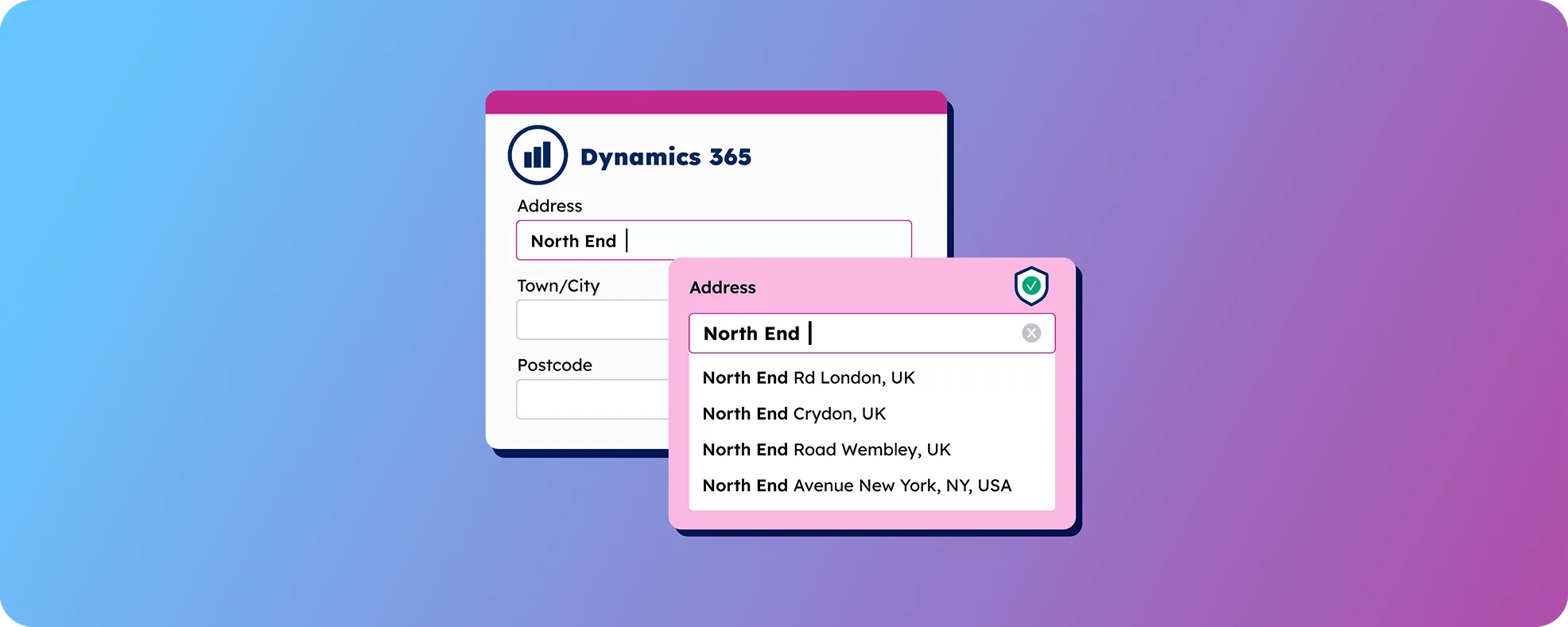
Address autocomplete improves the productivity of capturing addresses. It kicks in as soon as a user starts filling in an address form on a customer account, a lead, a vendor record, or a sales order. Type a ZIP code, and Dynamics looks it up against your reference data. It then presents a suggestion: the linked city and state or province. The user confirms, and both fields populate automatically. No manual entry; no risk of a mistyped city name.
Address validation guarantees accuracy and compliance when capturing addresses. It’s configured in the Address Setup module, but instead of suggesting, it enforces referential integrity. If the user types a ZIP code that isn’t present in the Address Setup data, Dynamics returns an error and blocks the saving of the record. The record stays open until the user enters values that match an entry in the Address Setup master data tables. There’s no way around it — the system won’t let the record through.
The practical difference: autocomplete helps your team work faster; validation makes sure the data that enters your system is clean. You configure both in the Address Setup parameters tab, and you can run them together or independently.
💡Tip: If you’re unsure which to start with, enable autocomplete first. Autocomplete improves data quality without blocking your users. Add validation once your reference data is complete enough to cover every address your team captures.
The dependency you can’t skip: data quality
Before you configure either feature, there’s one requirement you need to understand: Both autocomplete and validation outputs are only as good as the address master data powering them.
If a city is missing in the Address Setup tables, autocomplete won’t suggest it. If a ZIP code is missing, validation will block record creation — even if it’s a real, valid ZIP code. Master data gaps become process gaps that will generate problems.
💡Tip: Run a coverage check before enabling validation. Map the countries your company operates in against the data you have in each reference table. Any gap is a country where users hit validation errors on legitimate addresses.
How to configure address autocomplete in the Address Setup module
Address autocomplete is a native capability in Dynamics 365 F&O that is automatically activated once you have maintained the Address Setup master data tables. Its functionality is granularity-dependent: D365 will allow you to autocomplete only the address components that you have maintained in the Address Setup master data tables (e.g., if you did not maintain the ZIP/Postal Codes master data table, you will not be able to autocomplete city/region based on a ZIP code).
How to configure address validation in the Address Setup module
Address validation requires explicit configuration in D365.
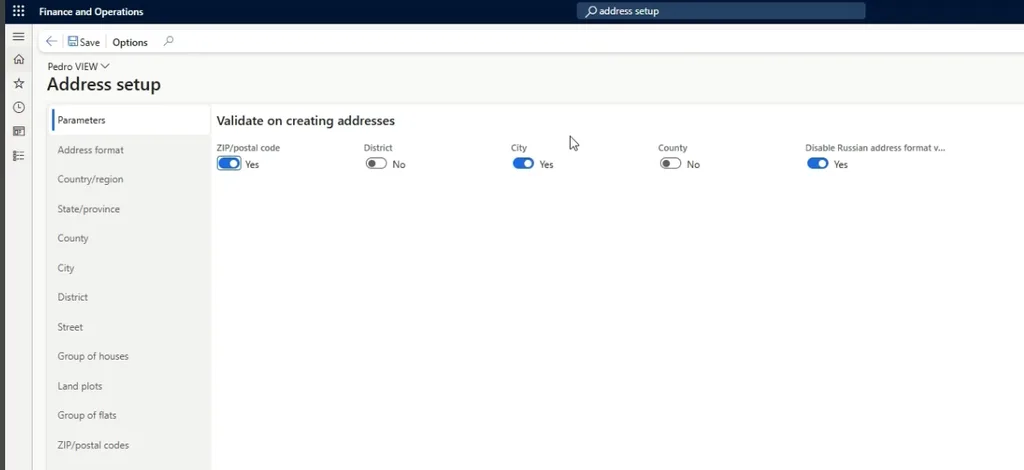
First, you should access the configuration module by typing Address Setup in the search bar at the top of Dynamics 365 F&O. Open the module and navigate to the Parameters tab.
In this screen, you set the validation rules for the system. Dynamics 365 F&O lets you enforce validation at four levels:
- ZIP/Postal code — the most precise and the recommended starting point
- City — useful, but needs careful data maintenance (see tip below)
- County — second-level administrative division
- District — sub-city level; relevant for countries like Mexico where an address must include a district
You can activate any combination of these. Each field you enable becomes a hard rule — a mismatch between what the user enters and what’s in the master data will block the save.
💡Tip: ZIP code validation is the most reliable field to start with. ZIP codes are typically numeric and consistent, which makes matching precise. City validation is more delicate — a city name can appear in multiple spellings, different languages, or hyphenated forms. If you enable city validation, make sure your master data covers every variation your users might type.
The Address Setup tables powering address validation
The Address Setup module uses six main tables. Each one plays a role in how autocomplete and validation work.
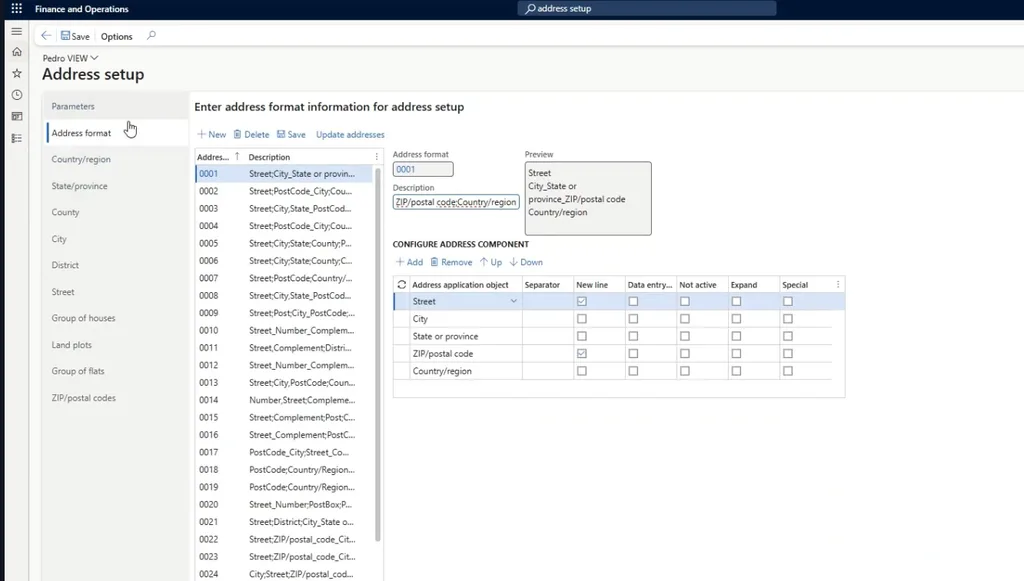
Address format
The Address format table defines how each country’s addresses look. Not all countries write addresses the same way.
In the United States, an address includes a state code. In Belgium, it doesn’t. In some countries, there is no ZIP code at all. Each format tells Dynamics which fields to display and in what order when a user captures an address for a given country.
Country/Region
The Country/Region table lists every country your company operates in. Link each country to an address format — this tells Dynamics how to display and check an address for that specific country.
State/Province
The State/Province table contains the first administrative division for each country. For the United States, this means states such as California or New York. For Spain, it means provinces. The structure varies by country, but the purpose is the same: it represents the first level below the country in the address hierarchy.
Maintaining this table is useful for reporting even in countries where the region doesn’t appear in the address format. Use it to track sales by region or province.
County
The County table holds the second administrative division. In the US, that’s the county level (e.g., Cook County, Orange County). In other countries, it maps to an equivalent subdivision.
The county level is optional in many countries’ address formats, but it matters for reporting and is needed in some national address standards.
City
The City table contains cities linked to their corresponding state or county. The city table is the reference point for city-level autocomplete and validation.
One area to pay attention to: in countries like Belgium, Canada, and Switzerland, a city name can be written in more than one language. Geneva is also Genf in German and Ginevra in Italian.
If your users capture addresses in multiple languages, your city data needs to cover all the versions they might use.
ZIP/Postal codes
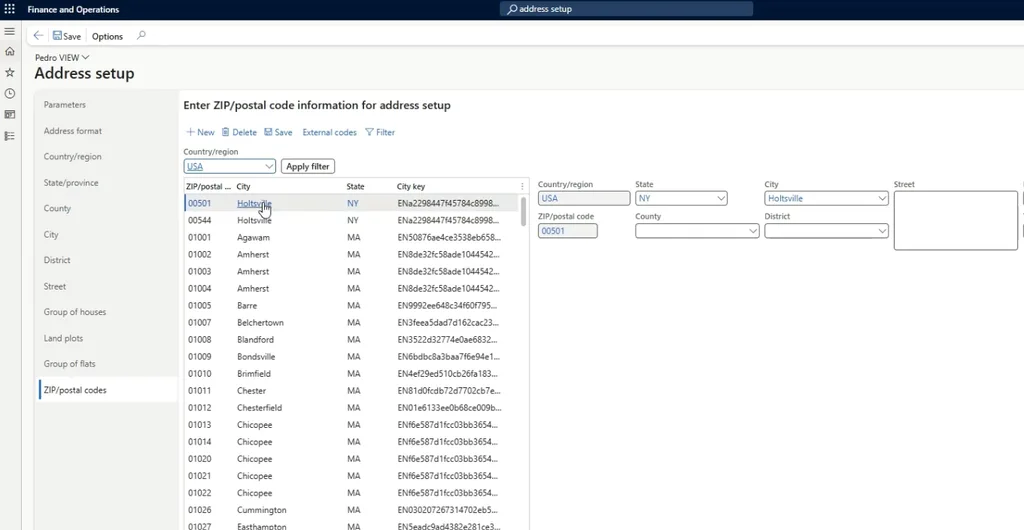
The ZIP/Postal codes table is the most complex and powerful. It links ZIP codes to cities, states, and districts within a single record. A ZIP code can map to multiple cities; and a city can have multiple ZIP codes. The table handles both and also allows maintenance of Street and House Number data, although Dynamics does not currently provide native autocomplete or validation at those levels.
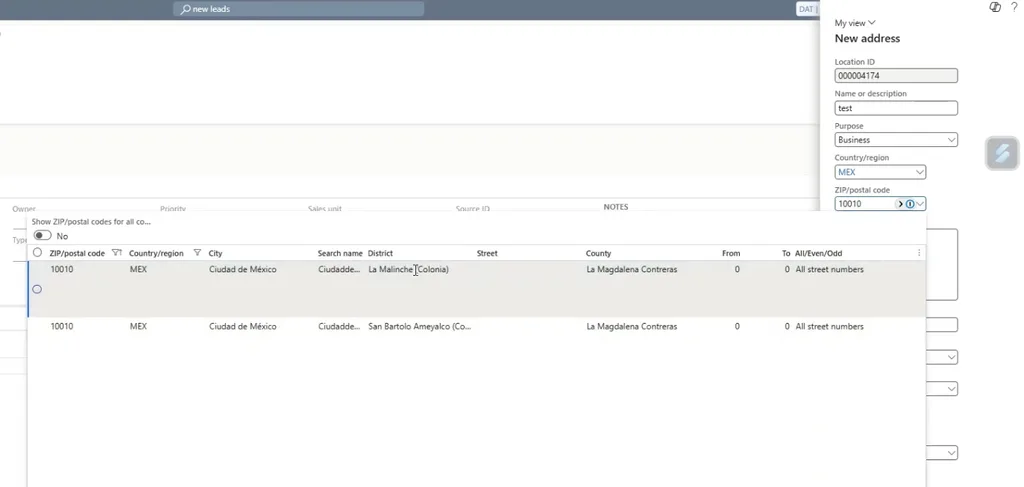
For countries where the address must include a sub-city district — Mexico is the clearest example — the ZIP code table also stores the district data. In Mexico, every ZIP code maps to a specific asentamiento (a neighborhood-level administrative unit), and that field is compulsory when capturing a Mexican address. The district column in the ZIP/Postal codes table is where that data lives.
💡Tip: The ZIP/Postal codes table is the backbone of autocomplete. When a user enters a ZIP code, Dynamics looks it up here and pulls the associated city, state, and district. If this table is incomplete or outdated, autocomplete breaks down at the most visible point in the address form.
How it works in practice
Spain: ZIP code with a single city
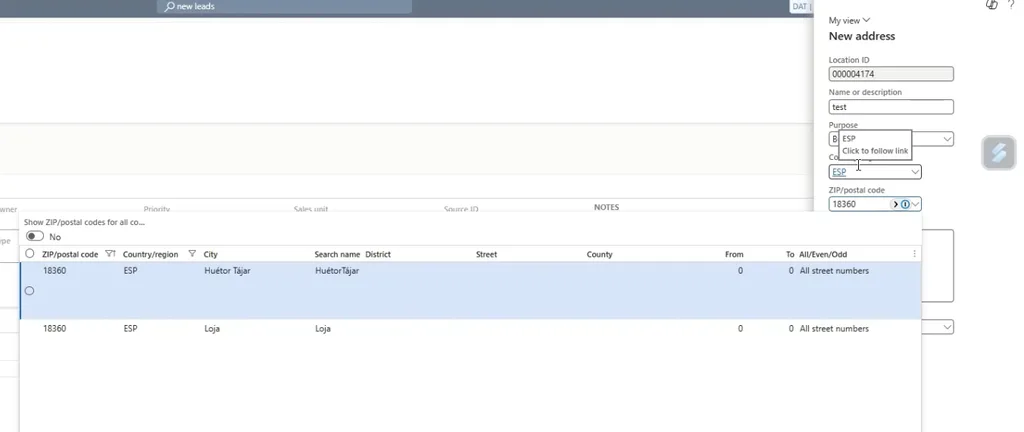
With autocomplete enabled, a user enters ZIP code 18001 for a Spanish address. Dynamics looks up the code, finds that it maps to Granada in the province of Granada, and auto-fills both fields. One entry; two fields populated. The user confirms the suggestion and moves on.
If the ZIP code maps to two cities, Dynamics displays both options and lets the user choose before populating the form.
Mexico: multi-district ZIP code and validation in action
Mexico shows both features at their most complete. When a user enters ZIP code 01010, Dynamics finds two different asentamientos in Mexico City. The user selects one, and the city, district, state, and county fields all populate at once.
With validation also enabled, the system enforces those results. Now the user types an extra digit. The code doesn’t exist in the reference data. Dynamics returns an error: that ZIP code is not found for Mexico.
Dynamics won’t save the record. The user must correct the entry before the system accepts it.
Address validation works as designed: fast for correct data, uncompromising for incorrect data.
The Address Setup master data is the foundation
Both autocomplete and validation processes depend on the same thing: complete, accurate, and current reference data in your Address Setup tables. Getting the module configured correctly is the first step. Maintaining quality and up-to-date address master data determines whether it actually works.
GeoPostcodes provides a plug-and-play global location dataset built specifically for the Dynamics 365 F&O Address Setup module. The dataset includes ZIP codes, cities, states, provinces, counties, and districts. It’s built by combining more than 1,500 authoritative sources. Every data license includes customer support from onboarding through integration into your Dynamics 365 F&O instance.
Ready to get started with address autocomplete and validation in Dynamics 365? Download a sample D365 import package to see the difference clean, standardized master data can make — or contact us to discuss your D365 address master data requirements.
💡 To learn how to load and integrate your reference data into the Address Setup module first, read our guide to the Address Setup module in Dynamics 365 F&O.
FAQ
What is the difference between address autocomplete and address validation in Dynamics 365 F&O?
Autocomplete fills in address fields automatically when a user enters a ZIP code.
Validation enforces data quality — if the entry doesn’t match your master data, the system blocks the save.
You can run both features at the same time.
Which field should I prioritize in the address validation process?
We recommend you start validating ZIP codes.
ZIP codes are the most precise field and the least prone to spelling variation.
City validation needs a more careful process design because the same city can be written in different languages or spellings.
Can I enable validation without autocomplete?
Autocomplete is enabled by default if you maintain the address master data in the Address Setup module, and you cannot disable it natively.
You can decide whether you want to enforce validation or not by configuring the parameters.
What happens if a user enters an address that isn’t in the Address Setup master data?
With validation enabled, Dynamics blocks the save and displays an error message.
The user cannot store the record until the address matches an entry in the reference tables.
How do I handle cities written in multiple languages?
Your city table needs to include all language variants that your users might enter.
Countries like Belgium, Switzerland, and Canada have cities with official names in more than one language.
We provide multi-language city data to cover these cases.
What is the district field used for?
The district field maps to a sub-city administrative unit.
Some countries need it in a complete address — Mexico being the most common example, where the asentamiento level is compulsory.
For countries that don’t use a district in the address format, you can still populate the field for reporting purposes.
Does the GeoPostcodes dataset cover all six tables in the Address Setup module?
Yes.
We cover all six tables: address formats, country/region codes, states and provinces, counties, cities, and ZIP codes.
District-level data is included where needed, and we can also provide Street Names and House Numbers if you would like to maintain those levels of granularity.